Database Migration
Prepare Source Database
1. Add database flags
Add following lines to me-infrastructure for gcp/resources/sql_instances.staging.yaml or gcp/resources/sql_instances.production.yaml. This will cause a downtime of about 30 seconds:
    - name: cloudsql.logical_decoding
      value: 'on'
    - name: cloudsql.enable_pglogical
      value: 'on'
2. Create migration user
Create a new database user with the username migration, generate and store the password.
3. Configure postgres system database
Login to the source database using the postgres user. If you do not know the password you have to change it. Run the following code on the postgres database:
\c postgres

CREATE EXTENSION IF NOT EXISTS pglogical;

ALTER USER migration with REPLICATION;

GRANT USAGE on SCHEMA pglogical to migration;
GRANT SELECT on ALL TABLES in SCHEMA pglogical to migration;

GRANT USAGE on SCHEMA public to migration;
ALTER DEFAULT PRIVILEGES IN SCHEMA public GRANT SELECT ON TABLES TO migration;
ALTER DEFAULT PRIVILEGES IN SCHEMA public GRANT SELECT ON SEQUENCES TO migration;
GRANT SELECT on ALL TABLES in SCHEMA public to migration;
GRANT SELECT on ALL SEQUENCES in SCHEMA public to migration;
4. Configure segment-diff database
Login to the source database using the me-segment-diff@ems-mobile-engage.iam user. Run the following code on the segment-diff database:
\c segment-diff

CREATE EXTENSION IF NOT EXISTS pglogical;

ALTER USER migration with REPLICATION;

GRANT USAGE on SCHEMA pglogical to migration;
GRANT SELECT on ALL TABLES in SCHEMA pglogical to migration;

GRANT USAGE on SCHEMA public to migration;
ALTER DEFAULT PRIVILEGES IN SCHEMA public GRANT SELECT ON TABLES TO migration;
ALTER DEFAULT PRIVILEGES IN SCHEMA public GRANT SELECT ON SEQUENCES TO migration;
GRANT SELECT on ALL TABLES in SCHEMA public to migration;
GRANT SELECT on ALL SEQUENCES in SCHEMA public to migration;
If the statement involving pglogical fails:
-- Run this as the 'postgres' user
GRANT cloudsqlsuperuser TO "me-segment-diff@ems-mobile-engage.iam";
5. Add primary key to segment_diffs table
In order to support CDC migration, all tables must have a primary key. Only table that does
not use a primary key is segment_diffs table. Since this table is huge we need to add a primary
key in a way that it does not block write operations, so it needs to be done in a few steps.
All the necessary steps are demonstrated in this DB fiddle. Some of the steps are quick to execute (seconds), while the others take a long time (10-60 minutes). Thus, these statements must not be run from a local machine, but must be executed by launching a pod in the GAP cluster.
Create a Kubernetes resources YAML file with the below content. Replace
$INSTANCE_CONNECTION_NAME` and $DATABASE_USER with correct values based on the environment
in which you are running the migration (staging/production). When running gcloud sql instances describe $DATABASE_NAME --project=$PROJECT the instance connection name is shown.
For example:
-
$INSTANCE_CONNECTION_NAME=ems-gap-me-segment-diff-p:europe-west3:me-segment-diff-production-pg13() -
$DATABASE_USER=me-segment-diff@ems-mobile-engage-staging.iamorme-segment-diff@ems-mobile-engage.iam
Create PR with the file at gap/production or gap/staging folder.
apiVersion: v1
kind: ConfigMap
metadata:
  name: me-segment-diff-pg-migration
  namespace: mobile-engage
data:
  query: |
    \echo Adding id column to segment_diffs table

    ALTER TABLE segment_diffs ADD COLUMN id BIGINT;
    CREATE SEQUENCE segment_diffs_id_seq;
    ALTER SEQUENCE segment_diffs_id_seq OWNED BY segment_diffs.id;
    ALTER TABLE segment_diffs ALTER COLUMN id SET DEFAULT nextval('segment_diffs_id_seq');

    \echo Added id column to segment_diffs table

    \echo Populating id column in segment_diffs table

    DO $do$
    DECLARE
    _current INTEGER := 0;
    _step INTEGER := 1000;
    _last INTEGER := (SELECT MAX(segment_id) FROM segment_diffs);
    BEGIN
    LOOP
        RAISE NOTICE 'Updating rows starting from segment_id %', _current;

        UPDATE segment_diffs
        SET
        id = nextval('segment_diffs_id_seq')
        WHERE
        segment_id BETWEEN _current AND (_current + _step)
        AND id IS NULL;

        EXIT WHEN NOT FOUND AND _current + _step > _last;

        COMMIT;

        PERFORM pg_sleep(10);
        _current := _current + _step;

    END LOOP;
    END
    $do$;

    \echo Populated id column in segment_diffs table

    \echo Creating unique index on id column in segment_diffs table

    CREATE UNIQUE INDEX CONCURRENTLY segment_diffs_id_key ON segment_diffs (id);

    \echo Created unique index on id column in segment_diffs table

    \echo Adding primary key to segment_diffs table

    ALTER TABLE segment_diffs ADD CONSTRAINT segment_diffs_pkey PRIMARY KEY USING INDEX segment_diffs_id_key;

    \echo Added primary key to segment_diffs table
---
apiVersion: v1
kind: Pod
metadata:
  name: me-segment-diff-pg-migration
  namespace: mobile-engage
spec:
  serviceAccountName: me-segment-diff
  restartPolicy: Never
  securityContext:
    runAsUser: 1000
  volumes:
    - configMap:
        items:
        - key: query
          path: query.sql
        name: me-segment-diff-pg-migration
      name: query
  containers:
    - command:
        - /cloud_sql_proxy
        - -enable_iam_login
        - -ip_address_types=PRIVATE
        - -instances=$INSTANCE_CONNECTION_NAME=tcp:5432,
        - -term_timeout=30s
        - -structured_logs
      image: gcr.io/cloudsql-docker/gce-proxy:1.30.1-alpine
      imagePullPolicy: IfNotPresent
      name: cloud-sql-proxy
      resources:
        limits:
          cpu: 500m
          memory: 500Mi
        requests:
          cpu: 20m
          memory: 50Mi
      securityContext:
        allowPrivilegeEscalation: false
        capabilities:
          drop:
          - ALL
        privileged: false
    - command:
        - sh
        - -c
        - "sleep 5; psql -h 127.0.0.1 -U $DATABASE_USER -d segment-diff < /tmp/query.sql"
      image: postgres:13
      name: psql
      resources:
        limits:
          cpu: 500m
          memory: 500Mi
        requests:
          cpu: 20m
          memory: 50Mi
      securityContext:
        allowPrivilegeEscalation: false
        capabilities:
          drop:
          - ALL
        privileged: false
      volumeMounts:
        - mountPath: /tmp
          name: query
Once finished remove the file from the repository.
6. Run maintenance job
It is important to run the maintenance job shortly before starting the migration job in order to reduce the source database size, which will speed up the migration job.
Use k9s CLI tool to manually trigger the maintenance job:
-
k9s -n mobile-engage -
Open cron jobs page:
:cronjobs -
Search for the job:
/ me-segment-diff-maintenance -
Trigger the job:
t -
Open pods page
:pods -
Search for the pod:
/ me-segment-diff-maintenance -
Check the logs:
l -
Wait for the job to finish
-
Delete the pod:
ctrl-d
Create Destination Postgres Instance
1. me-infrastructure
In me-infrastructure copy definition of source Postgres instance and adapt it. Files are located at gcp/resources/sql_instances.staging.yaml or gcp/resources/sql_instances.production.yaml.
-
Adapt the name
-
Adapt the Postgres version
-
Adapt the
disk_gbto the usage of the source database -
Remove flags
cloudsql.logical_decodingandcloudsql.enable_pglogicalbecause these were just added for the migration -
Remove
segment-diffdatabase from the new instance (Database Migration Service expects an empty Postgres instance) -
Remove
postgressystem user from the new instance if present (postgressystem user is always present and cannot be deleted in GCP, so it is better to leave out from our IaC)
Run Migration Job
1. Create connection profile
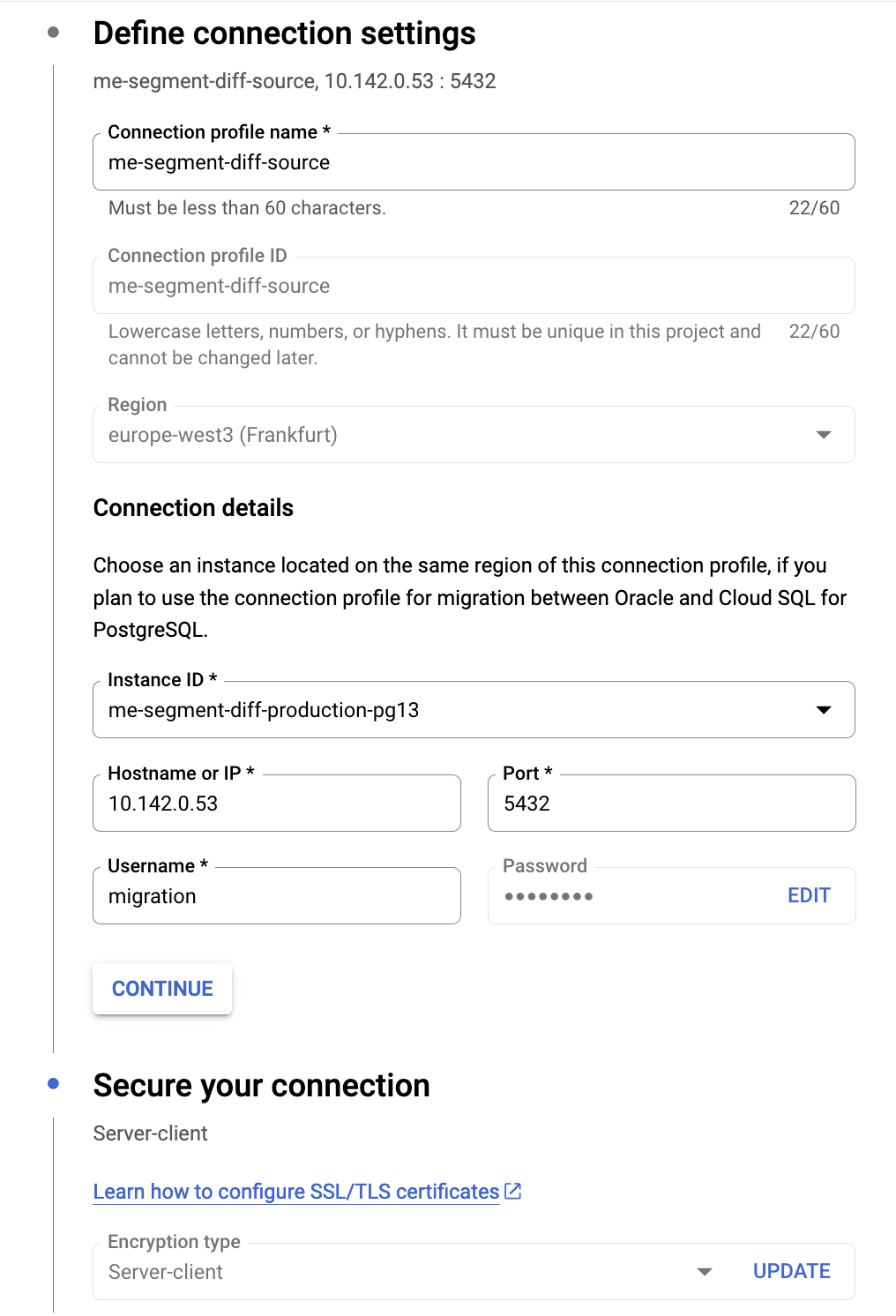
In Database Migration Service UI, create a new connection profile for source database instance (Cloud SQL for PostgreSQL).
Use the migration user for connection. Connection must be secured with the server-client
encryption type. In Cloud SQL UI for source database instance, create a new client certificate,
and download the certificate and private key (Connections | Security tab). Also download the server certificate. Specify
them in connection profile settings.
2. Create migration job
In Database Migration Service UI, create a new migration job. Use the previously created connection profile for the source database instance. For the target database instance, specify the target instance that you already created. For connectivity method use VPC-peering. For parallelism level choose Maximum, to speed up the migration.
Test the migration job to verify that all the prerequisites were met. Once the job is ready, create it, but do not start it yet!
3. Stop the workers
Please inform Web Channel team that the workers will be stopped and no updates to segment snapshots and diffs will be done in the next eight hours. It might take longer.
We must stop all the background workers to reduce the load on the database and to prevent workers from creating/dropping segment snapshot tables, which interferes with the migration process, since in the first pass all the tables are added to the replication set.
We can keep the web worker running, which will allow the SDS service to serve existing segment versions.
Use k9s CLI tool to stop all deployments for background workers (everything except the web deployment).
-
k9s -n mobile-engage -
Open deployments page:
:deployments -
Search for the deployments:
/ me-segment-diff -
Scale deployments to 0:
s -
Open pods page
:pods -
Wait until all pods except
webare terminated
Prepare Destination Database
While migration job is running, we can prepare the destination database.
1. Create a user
Double-check if user me-segment-diff@ems-mobile-engage.iam exists in the destination database. Otherwise create an me-segment-diff@ems-mobile-engage.iam IAM database user.
2. Configure user permissions
Login as postgres user and run the following code:
\c segment-diff

GRANT ALL PRIVILEGES ON DATABASE "segment-diff" TO "me-segment-diff@ems-mobile-engage.iam";

GRANT ALL PRIVILEGES ON SCHEMA public TO "me-segment-diff@ems-mobile-engage.iam";

ALTER DEFAULT PRIVILEGES IN SCHEMA public GRANT ALL PRIVILEGES ON TABLES TO "me-segment-diff@ems-mobile-engage.iam";
ALTER DEFAULT PRIVILEGES IN SCHEMA public GRANT ALL PRIVILEGES ON SEQUENCES TO "me-segment-diff@ems-mobile-engage.iam";

GRANT ALL PRIVILEGES ON ALL TABLES IN SCHEMA public to "me-segment-diff@ems-mobile-engage.iam";
GRANT ALL PRIVILEGES ON ALL SEQUENCES IN SCHEMA public to "me-segment-diff@ems-mobile-engage.iam";
You can use permissions-migrator in me-validate-database-migration.
Verify the migration
Monitor the migration job in Database Migration Service UI. Once the initial dump is complete, and CDC migration starts, monitor the replication delay. It should be close to 0. Now is a good time to verify the data in the destination database, before proceeding with the switchover.
1. Verify permissions
Login as me-segment-diff@ems-mobile-engage.iam user and verify the access to database tables:
\c segment-diff

-- List privileges for schemas
\dn
-- List default privileges for tables/sequences
\ddp
-- List privileges for tables/sequences
\dp
2. Verify data
Login to both source and target databases and run the following queries:
-- Verify number of tables is the same in source/target database
SELECT COUNT(1) FROM pg_tables WHERE schemaname = 'public';

-- Verify number of rows is the same in source/target tables
SELECT COUNT(1) FROM segments;
SELECT COUNT(1) FROM segment_snapshots;
SELECT COUNT(1) FROM segment_diffs;
You can use me-validate-database-migration to verify the data. Note it takes a long time for prod because there are many tables.
Switchover
Once we are confident that the migration was successful, we can proceed with the switchover. To perform the switchover, we first need to stop all writes to the source database, wait for the target database to fully catch up with the source (replication delay must be 0), and then promote the target database as the new primary.
1. Stop the web worker
At this point, only web worker is running and making writes to the database. We need to
stop it, which means that SDS service will be completely unavailable from this point.
Use k9s CLI tool to stop the web deployment:
-
k9s -n mobile-engage -
Open deployments page:
:deployments -
Search for the web deployment:
/ me-segment-diff-web -
Scale the deployment to 0:
s -
Open pods page
:pods -
Wait until all
webpods are terminated
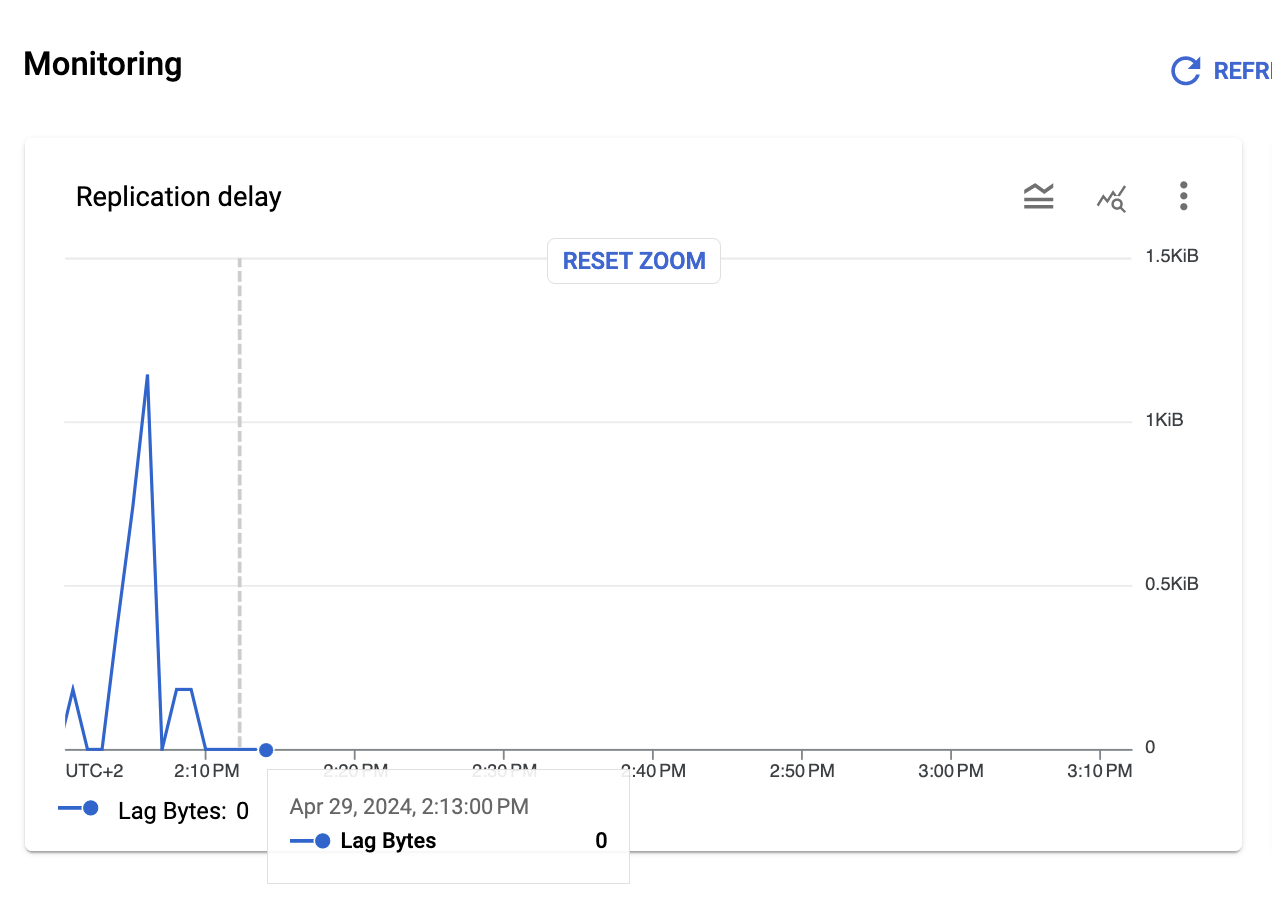
2. Wait for the replication delay to be 0
Monitor the replication delay in Database Migration Service UI. Wait for the line in the chart to reach 0.
3. Promote the migration job
In Database Migration Service UI, click Promote on the migration job. This will disconnect the source instance from the target instance, and the target instance will become the primary instance.
4. Enable Point-in-time recovery
In Cloud SQL UI enable the point-in-time recovery for the new database instance. This update takes about 10 minutes.
Cleanup
1. Remove cloudsqlexternalsync user
We want to remove the user which was used for the migration job. To do so, we first need to
transfer the ownership of all the objects owned by this user to the me-segment-diff@ems-mobile-engage.iam user.
Login as cloudsqlexternalsync user (reset and copy the password in Cloud SQL UI) and run the following code:
\c segment-diff
GRANT cloudsqlexternalsync TO "me-segment-diff@ems-mobile-engage.iam";
Login as me-segment-diff@ems-mobile.engage.iam user and run the following code:
\c segment-diff
REASSIGN OWNED BY cloudsqlexternalsync TO "me-segment-diff@ems-mobile-engage.iam";

\c postgres
REASSIGN OWNED BY cloudsqlexternalsync TO "me-segment-diff@ems-mobile-engage.iam";
You can use ownership-migrator in me-validate-database-migration.
Remove the cloudsqlexternalsync user in Cloud SQL UI.
2. Remove primary key on segment_diffs table
Login as me-segment-diff@ems-mobile-engage.iam user and run the following code:
ALTER TABLE segment_diffs DROP CONSTRAINT segment_diffs_pkey;
ALTER TABLE segment_diffs DROP COLUMN id;
These statements execute quickly and can be run from a local machine.
4. Update me-infrastructure
Import database
Import the segment-diff database of the new Postgres instance into me-infrastructure, e.g.
import {
  to = module.sql_instances.module.sql_instance["me-segment-diff-production-pg18"].google_sql_database.database["segment-diff"]
  id = "ems-gap-me-segment-diff-p/me-segment-diff-production-pg18/segment-diff"
}
Also, add the segment-diff database to the sql instance definition (it was not yet added because Database Migration Service expects an empty Postgres instance).
After it is imported please remove the import again.